Uploading Event Files
A critical step to ensure all relevant fMRI data is stored and accessible within Flywheel requires users to upload accompanying stimulus data. Users may upload the data from the user interface or from the command line. Please review both options below. Important Check with INC staff to confirm if stimulus log files for your project need to follow reproin naming convention.
1. USER INTERFACE
UPLOAD RAW EVENT TIMING DATA (PSYCHOPY or EPRIME)
From the stimulus computer, use the experimentation software (e.g. psychopy or eprime) to export event data in a spreadsheet format (e.g. *.csv, *.tsv).
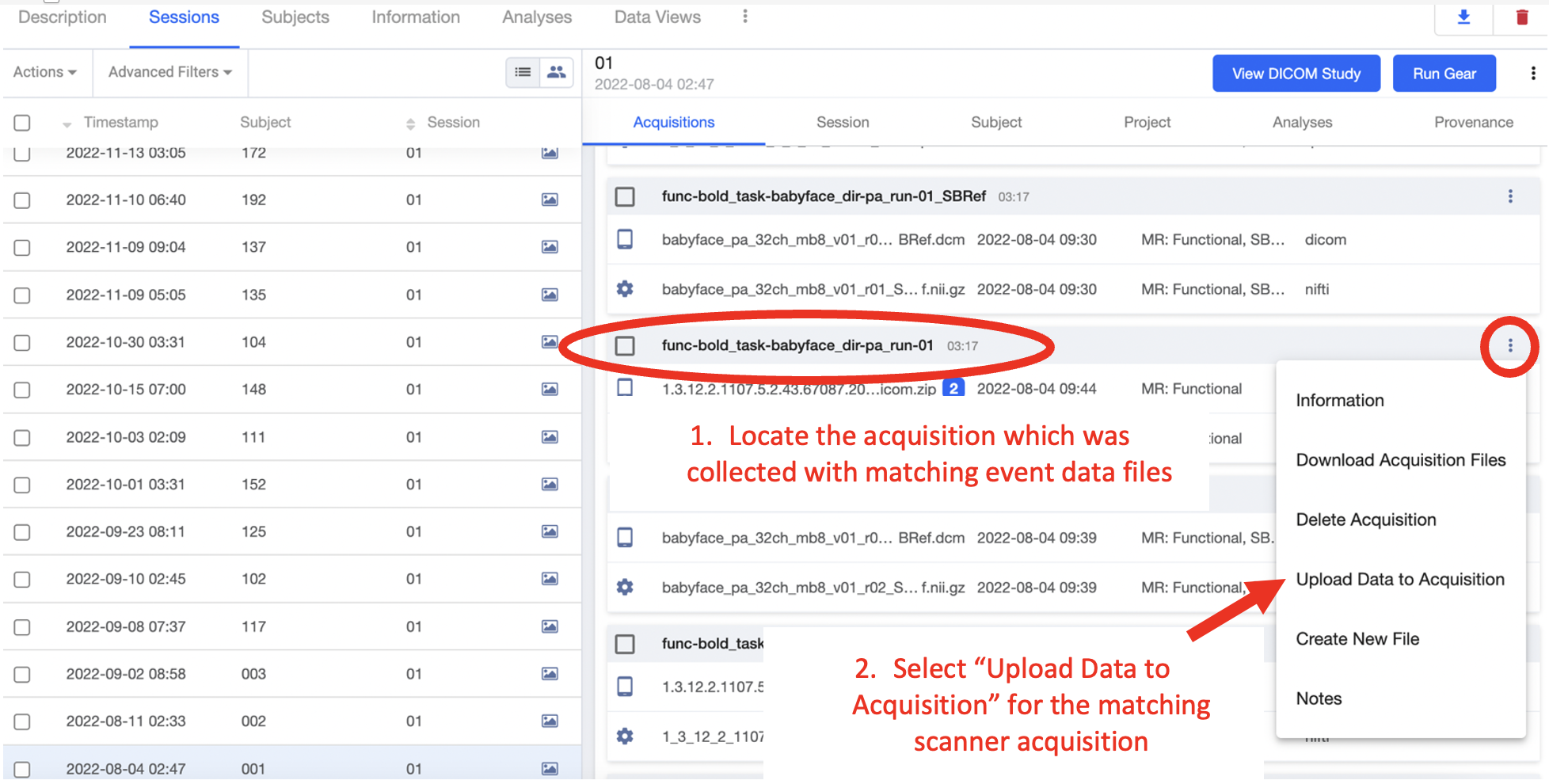
You will need to upload the event file to Flywheel, to do so: navigate to your project, and go the sessions panel. Select the session of interest.
In the acquisition view, find the correct acquisition to match the event data. For example, an acquisition “func-bold_task-babyface_dir-pa_run-01”
Upload the file to the Flywheel acquisition of interest.
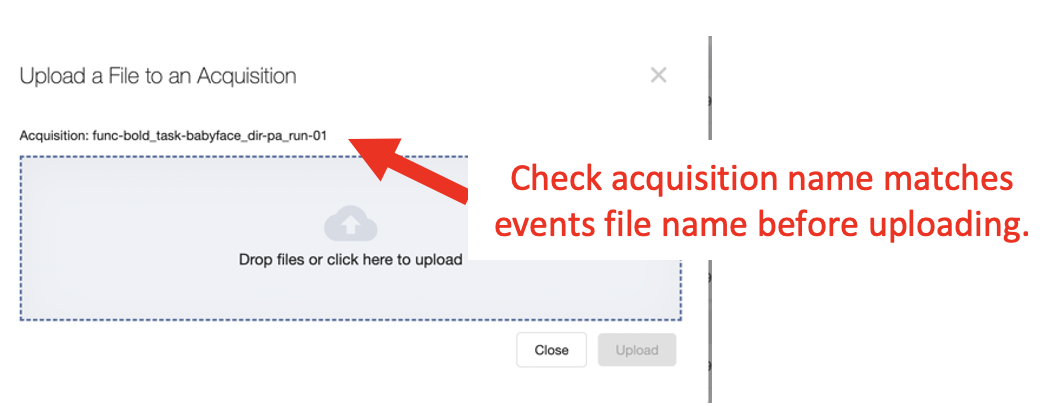
Locate the file for upload. BE SURE the file is named using the correct filename convention (STEP 4). Select “Upload”.
Repeat this process for all acquisitions with task related events files.
Note
Studies using the BIDS naming convention (BIDS Curation) should include additional curation step in the analysis workflow to add BIDS metadata objects for stimulus logs and event timing files. For an example hiearchy curator script used to apply custom BIDS metadata objects check out our github repository here.
2. COMMAND LINE INTERFACE
UPLOAD RAW EVENT TIMING DATA (PSYCHOPY or EPRIME)
If you are looking to upload many stimulus files together, or are interested in scripting the upload for a crontab (automatically run for new sessions). Consider using the command line interface to upload stimulus files.
Before using the Flywheel CLI, first organize your stimulus files into the structured hierarchy enforced by Flywheel.
PROJECT
|-- SUBJECT
    |-- SESSION
        |-- ACQ LABEL 1
            |-- Stim file
        |-- ACQ LABEL 2
            |-- Stim file
        |-- ACQ LABEL 3
            |-- Stim file
For example the file tree could look like…
my-directory
|-- my-project
    |-- 001
        |-- S1
            |-- func-bold_task-motor_dir-ap_run-01
                |-- func-bold_task-motor_dir-ap_run-01_recording-psychopy_stim.tsv
            |-- func-bold_task-motor_dir-ap_run-02
                |-- func-bold_task-motor_dir-ap_run-02_recording-psychopy_stim.tsv
            |-- func-bold_task-nback_dir-ap_run-01
                |-- func-bold_task-nback_dir-ap_run-01_recording-eprime_stim.tsv
    |-- 002
        |-- S1
            |-- func-bold_task-motor_dir-ap_run-01
                |-- func-bold_task-motor_dir-ap_run-01_recording-psychopy_stim.tsv
            |-- func-bold_task-motor_dir-ap_run-02
                |-- func-bold_task-motor_dir-ap_run-02_recording-psychopy_stim.tsv
            |-- func-bold_task-nback_dir-ap_run-01
                |-- func-bold_task-nback_dir-ap_run-01_recording-eprime_stim.tsv
Notice in the above example, stimulus files are labeled using reproin naming convention to match naming of the fMRI acquisition. The stimulus file must include the suffix _recording-[psychopy,eprime,other] to indicate its a raw recording file. Multiple session files can be stored and should conform to the Flywheel hierarchy (project -> subject -> session -> acquisition). If events are non-unique across all participants, the stimulus files can be uploaded at a project level.
Once files are properly named and organized in the Flywheel hierarchy, use the following CLI command to upload to flywheel. Important Be sure to include the --skip-existing argument to avoid overwriting previously uploaded data.
fw ingest folder -g [group-id] -p [project-label] --skip-existing --symlinks --no-audit-log --yes [path-to-source-data]
For the above example…
fw ingest folder -g ics -p my-project --skip-existing --symlinks --no-audit-log --yes /home/ics/my-directory/my-project/
Please consult INC staff for assistance importing event files or other datatypes.
3. COMPLETENESS CHECKS
Many studies using automatic analysis workflows (see section Automated Analysis Workflow), will rely on the COMPLETENESS metadata object to control which analysis stages can be run. Once event files have been uploaded for the data collection session, users should indicate the change in the COMPLETENESS metadata object.
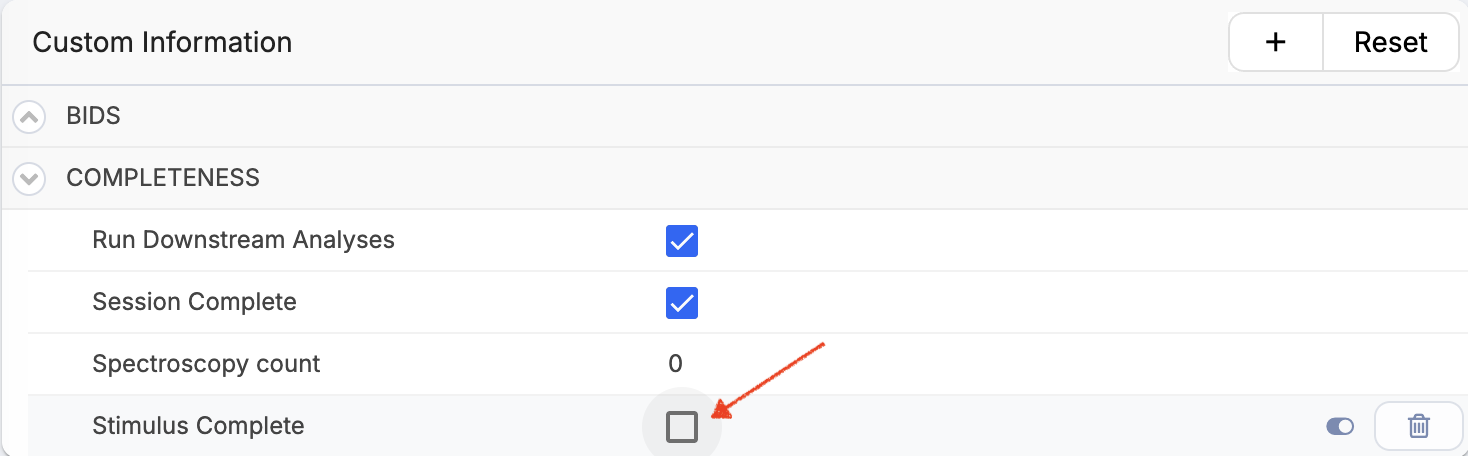
Select the check box next to Stimulus Complete, and click “Save” to keep changes. Your data collection session should now be read for fMRI data analyses (e.g. FSL FEAT, afni-proc, etc).