Viewing Data
Flywheel has a range of tools that can be used to view the data within the User Interface. These applications are being regularly updated and improved by the Flywheel Support Team. Please understand with the rapid development of viewers and applications in Flywheel some of the documentation contained below and on Flywheel Docs may be out of date. If you have any questions about current features for viewing data, contact INC staff.
Viewing DICOMS
Flywheel has an integrated DICOM viewer which allows you to view, interact, and edit DICOMS directly within our instance of Flywheel. Please visit Flywheel Docs for instructions on how to use the viewer here.
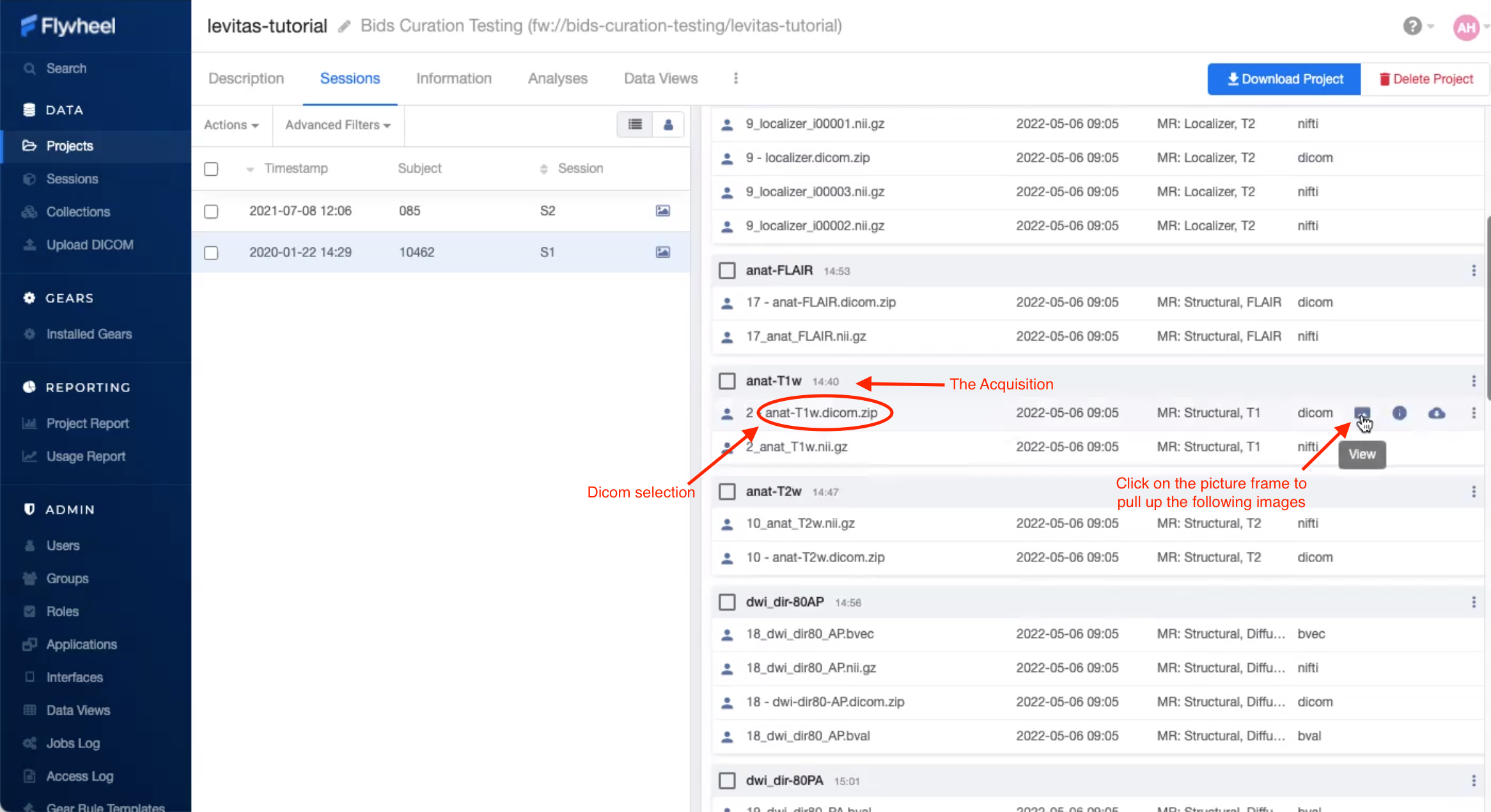
Using the “Picture” icon located next to subject, session, or file will automatically launch the dicom viewer and load the active dicom images.
Viewing NIFTIs
The same viewer can be used to view NIFTI formatted files. Just as above, navigate to the image of interest, then select the “Picture” icon to open the viewer. Want to learn more? Visit the Flywheel docs.
Viewing Other File Formats
Viewing plain text files
Text files can be viewed and edited within Flywheel’s User Interface. To view or edit text files:
Navigate to the file of interest
Click the vertical ellipsis to expand the options menu for the file
Select View
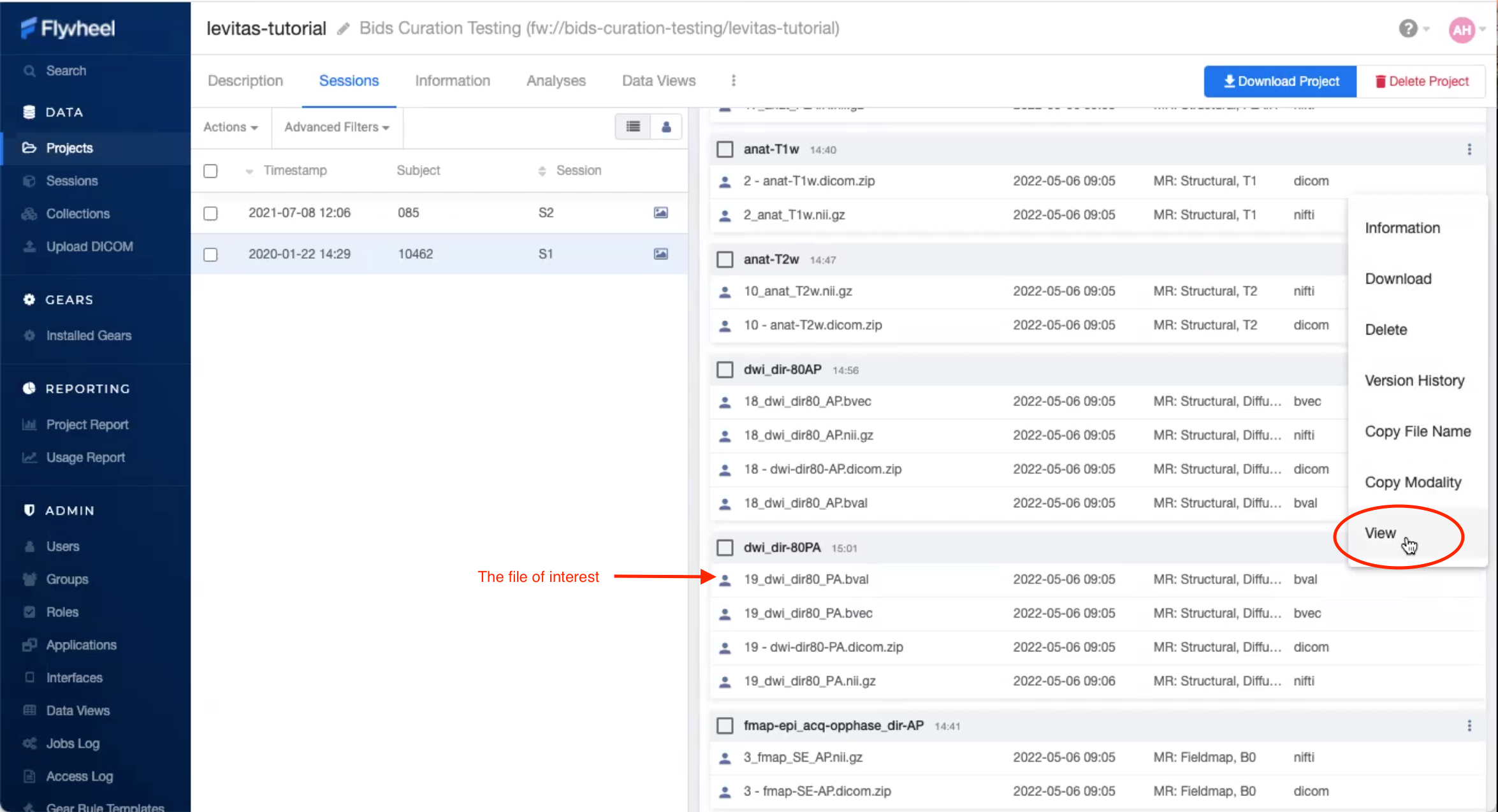
In the viewer you can make changes to the text and save, or simply view the contents of the file.
Note
Remember, Flywheel is organized with a rigid Hierarchy. All data is managed by membership to a specific “level” in Flywheel.
Group --> Project --> Subject --> Sessions --> Acquisitions
     files --^-----------^------------^-------------^-- files
Viewing spreadsheets
Spreadsheets may also be viewed within Flywheel. At this time, spreadsheets cannot be modified in the interface. Instead, if changes are needed, a new version of the spreadsheet must be uploaded to the Flywheel instance.